
Codepilot Agent Client Offers Cross-Platform AI Development and Integration Tools

Codepilot, an open-source, cross-platform Agent client, has iterated through hundreds of versions since its inception in January, accumulating over 5,100 GitHub Stars. The tool supports a range of Agent capabilities, including integration with various AI models, skill management, and remote connectivity.
Core Features and Capabilities
Codepilot integrates with major AI models such as Claude and OpenAI, alongside numerous domestic Chinese models like Codeplan. It supports the installation and use of Skills, Multi-Component Platforms (MCPs), and plugins. The client features a built-in design Agent that can generate images via Nano Banana and includes a command-line interface (CLI) dashboard for recommending and installing AI-friendly CLI tools.
Developer typing, holographic screens showing AI model logos and CLI dashboard.
For communication, Codepilot supports remote connections with instant messaging platforms including Feishu, WeChat, QQ, and Discord. It provides detailed token usage statistics and an assistant mode that can integrate with Obsidian for context organization, memory, and scheduled tasks. Additionally, Codepilot offers generative UI capabilities to visualize concepts and create interactive user interfaces.
Abstract network of glowing lines representing macOS, Windows, Linux, converging on a central 'Codepilot' icon.
Installation Across Operating Systems
Codepilot is compatible with macOS, Windows, and Linux. The latest installers are available in the Releases section of the Codepilot GitHub project page (https://github.com/op7418/CodePilot). Users should select the appropriate version for their operating system and CPU architecture.
Windows users may encounter a security warning upon first launch, which can be bypassed by choosing to continue the installation. macOS users will need to manually override Apple's security settings due to the application not being notarized or signed. This involves navigating to System Settings, then Privacy & Security, and selecting "Open Anyway" after attempting to launch the application.
Configuring AI Service Providers
After installation, users must configure their model APIs, as Codepilot, being an open-source product, does not provide pre-configured API access. This is done through the "Settings - Service Providers - Add Service Provider" menu.
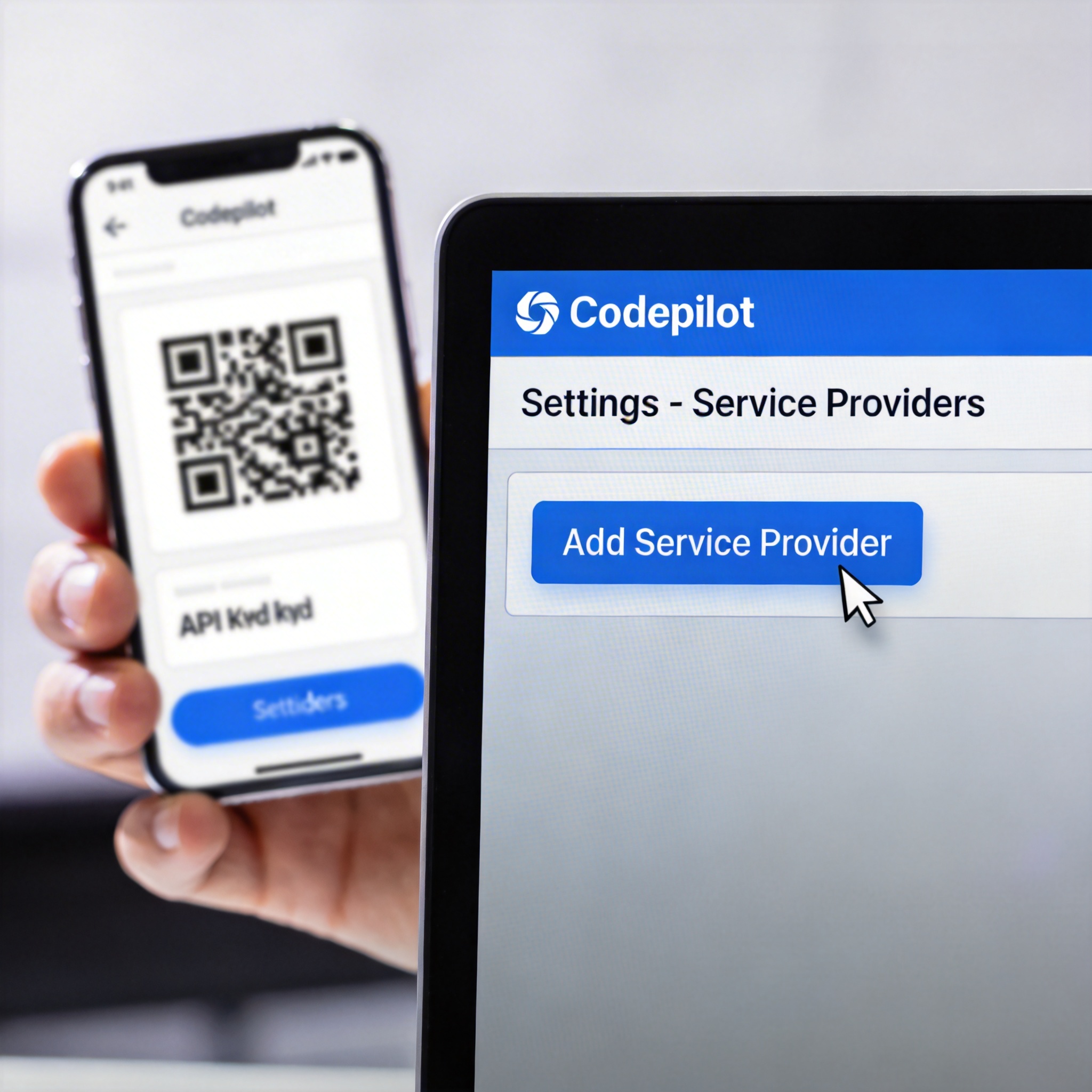
Codepilot 'Add Service Provider' menu on screen, hand holding phone with API key.
Domestic Model Codeplan Configuration
Codepilot supports configuration for most domestic Chinese models. For example, to configure Zhipu's Codeplan, users obtain an API key from Zhipu's Codeplan page, then select the GLM (CN) connection in Codepilot and input the key. Similar processes apply to other Codeplan providers like MiniMax, Kimi, MIMO, Volcano Ark, and Alibaba Cloud Bailian. Volcano's Codeplan requires specifying the model name as found in their documentation. A "Test Connection" option verifies successful integration.
Third-Party Anthropic Services
For users employing domestic third-party Claude model proxy APIs, configuration involves selecting "Anthropic Third-party API" under Service Providers. Users will need to provide a channel name, the Base URL from their service provider's documentation (specifically for the ClaudeCode section), and the API Key. The API Key field requires selecting either "AUTH" or "API Key" based on the variable name used in the service provider's configuration. If the service provider requires specific model names (e.g., HAIKU, OPUS, SONNET), these can be entered under the "More" option.
Claude Code Integration
Users with Claude Pro or Max memberships can integrate their quotas by installing and logging into ClaudeCode. Codepilot can then read the Anthropic login status and global environment variables set for Claude Code. This integration allows users to access Claude Code's model selection and adjust settings like thinking depth and 1M context. Chat histories from Claude Code can also be imported.
OpenAI Authorized Login
Codepilot supports OpenAI authorized login for GPT Plus or Pro model quotas. By selecting "Login with ChatGPT" in "Settings - Service Providers" and authorizing through the web page, users can access OpenAI models like GPT-5.4. When an OpenAI model is selected, the Agent architecture defaults to AI SDK, which may offer slightly different code writing capabilities compared to ClaudeCode.
Ollama Local Models
For local model execution, Codepilot supports Ollama connections. Users install Ollama and desired models, then select the Ollama connection under Service Providers and input the model name used during Ollama installation.
Chat and Project Management
Codepilot operates on a project-based system, similar to Codex and ClaudeCode, where each chat is associated with a local folder. Users initiate a conversation by creating a new project and selecting a folder, granting the AI access to all files within that project.
The chat interface displays the chat and project names, with options to rename the chat or open the project folder. Files within the project are visible on the right, allowing for previews. Users can add files, switch between configured AI models, and toggle between code and plan modes. The "Default Permissions" setting allows users to authorize file operations, or "Full Access" enables fully automated task execution by the AI.
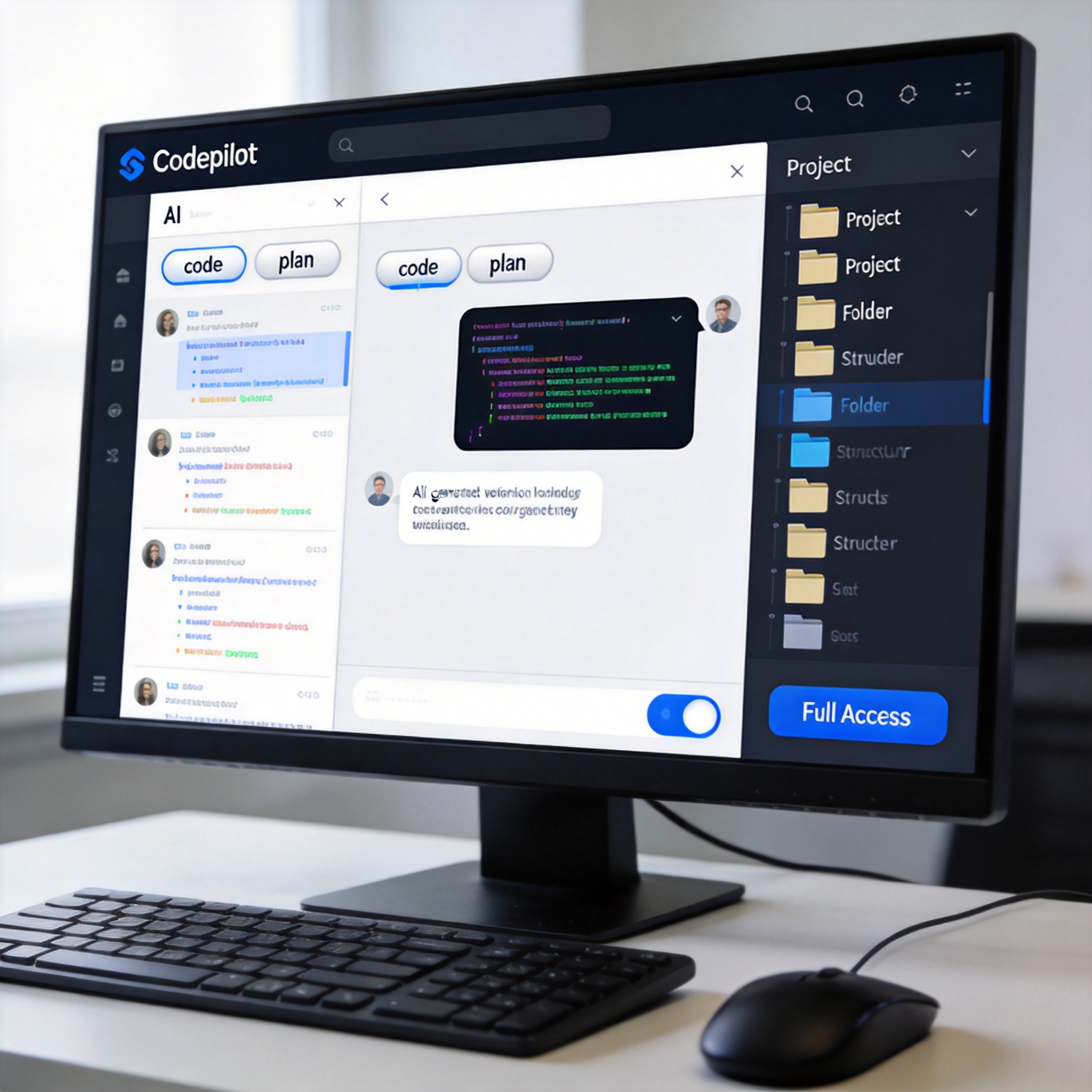
Codepilot chat interface showing project files, code, and 'Full Access' option.
Skills, MCP, and CLI Tool Management
Codepilot facilitates the installation and use of Skills and MCPs. The "Skills" panel displays installed skills and plugins, with a "Skills Market" for discovering and installing new ones. MCPs are managed via the "MCP" panel, where users can add new MCP services. To use a Skill, users can either type a general function followed by "Skills" or use the lightning icon (slash command) to browse and select from supported Skills. MCPs are invoked directly by instructing the AI.
The client also includes a built-in CLI tool store, curated by "Master Zang," featuring tools like ffmpeg and Feishu CLI. Users can install these recommended tools from the "CLI Tools" option, with introductory information provided for each.

Codepilot 'Skills Market' and 'CLI Tools' interface with various icons.
Design Mode and Asset Library
Codepilot's design Agent mode allows the AI to generate and continuously edit images, supporting batch generation. This feature requires configuring a Google AI Studio API Key under Service Providers. Generated images are automatically added to an asset library, which stores prompts, models, resolution, and reference images. Users can also revisit the conversation context for each image.

Codepilot 'Design Agent' mode showing AI-generated images and asset library.
Remote Connection via IM Platforms
Codepilot supports remote connections through instant messaging platforms such as Feishu, WeChat, QQ, and Discord. Users enable "Remote Bridging" in settings, start the bridge, and configure the desired channel. This involves setting a working directory and default model for remote IM connections. Specific setup guides for each IM platform are available within the application.
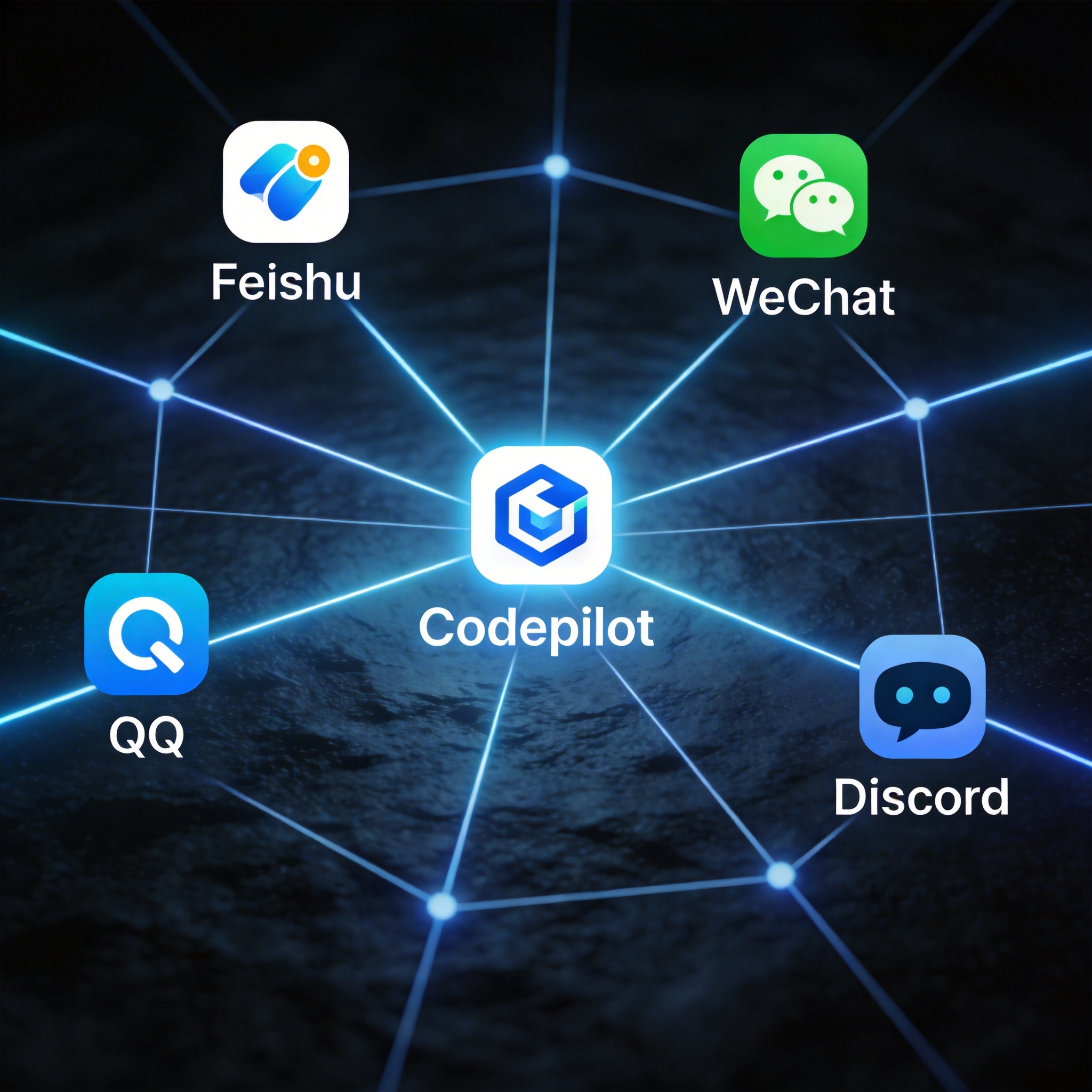
Abstract network connecting Codepilot to icons for Feishu, WeChat, QQ, and Discord.
Assistant Functionality
For users preferring an assistant-driven approach, Codepilot offers an assistant project feature with long-term memory and a "heartbeat" mechanism for active task execution. Users designate an assistant folder in settings, ideally an Obsidian vault folder, to enable the assistant to organize notes and leverage personal information for task completion. The assistant is represented by a "pet" that evolves with user interaction and can remember specific information.
Generative UI and Dashboard
A unique feature of Codepilot is its generative UI and dashboard capabilities. Users can instruct the AI to visualize concepts, leading to the generation of real-time charts or flowcharts. These visualizations can be downloaded as images. The assistant's memory can be leveraged to generate dynamic UIs, such as to-do lists, which can be pinned to a customizable dashboard. UI components on the dashboard support real-time data updates, allowing for dynamic tracking of tasks and information. This functionality, combined with the assistant's memory, enables users to create personalized applications with the dashboard as the frontend and the assistant's memory as the backend database.
Stay Ahead of the AI Curve
Join 50,000+ subscribers getting the latest AI tools, trends, and tutorials delivered to their inbox weekly.
No spam, unsubscribe at any time.